
In Hyphen, an Organization is a collaborative workspace where your team can manage multiple projects under a shared billing account. Organizations provide a central place to control project permissions, manage billing, and invite users to collaborate on one or more projects. Each project in Hyphen belongs to an organization, and users within an organization can collaborate across projects based on their assigned roles.
Table of Contents
Membership
Each user in Hyphen has a personal account. Multiple personal accounts can collaborate within the same organization. Organization membership allows users to contribute to projects, access resources, and, depending on their role, manage the organization itself.
Organization Owners
Members can be assigned the Organization Owner role, which grants them control over the organization’s settings, billing, and user access. A member who creates a Hyphen organization is automatically assigned the org owner role.
Owners can manage permissions for both the organization and individual projects, allowing them to tailor access for team members as needed.
Roles and Access
You can invite people to join your organization and assign them a role that grants different levels of access to the organization’s resources. Role assignments can be organization-wide or specific to individual projects:
- Organization-Level Roles: These roles govern access to the organization’s settings, including billing and overall membership.
- Project-Level Roles: These roles define what users can do within specific projects, such as managing secrets, configurations, or code repositories.
Project-Based Access
While organization-level roles define broad access, project-specific roles allow you to fine-tune access controls within individual projects. For example, you may want someone to contribute to a project without giving them full administrative access to the organization. For more information, see "Projects"
In summary, organizations in Hyphen provide a structured, scalable way for teams to collaborate on projects with clear access control and billing management. You can invite team members, assign them the appropriate roles, and manage who has access to what across both the organization and individual projects.
Phone Verification
Members can verify a phone number for their own membership from their member profile page. Enter a US or Canadian number, then confirm the SMS code sent to it.
A phone number can only be linked to one organization membership at a time. Verifying a number already linked to a membership in another organization prompts you to confirm moving the link to the current organization before the new number is verified. Members can change or remove their verified number at any time.
Member Notifications
Members choose how Hyphen notifies them about activity in an organization. Open your member profile page and select Notifications. Preferences apply only to the current organization, and notifications are optional.
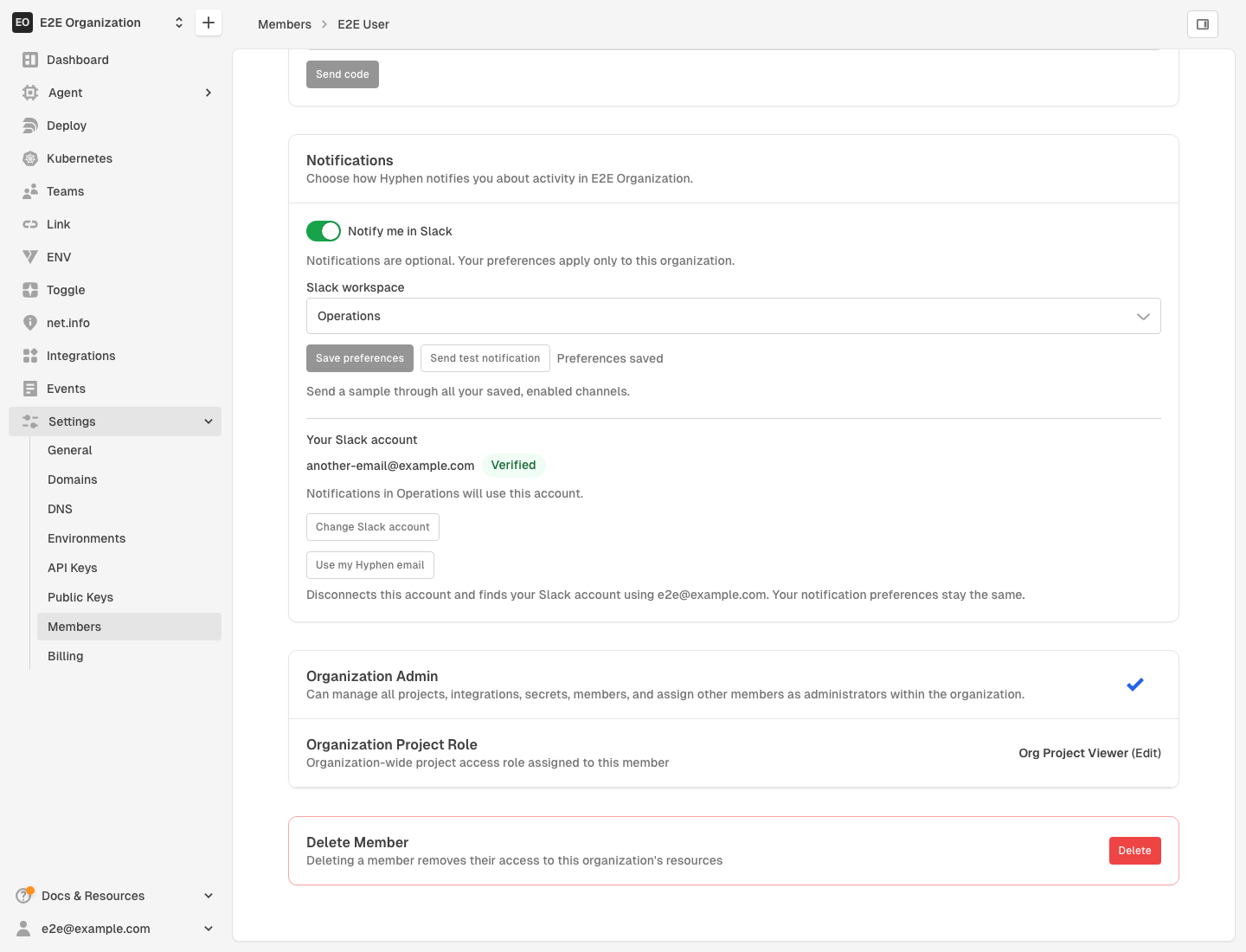
Notification setup has two parts. First, enable the providers you want to use. Second, choose which groups of notifications each provider delivers. Turning on a provider does not send any notification until you select it for at least one group.
Slack
- Ask an organization administrator to connect Slack, if no Slack workspace is available.
- In Notification preferences, turn on Enable Slack provider. If more than one Slack workspace is available, select the Slack workspace.
- Select Save preferences.
Hyphen finds your Slack account in the workspace using your member email. If your Slack email is different, select Connect a different Slack account and enter it. Hyphen sends a six-digit code to that account in Slack. Enter the code and select Verify Slack account. Connecting an account does not turn on notifications.
Select Use my Hyphen email to disconnect the account. Your notification preferences stay the same. If the Slack workspace changes, the account shows Reconnect required until you verify it again.
SMS
- Verify a phone number for your membership. See Phone Verification.
- In Notification preferences, turn on Enable SMS provider.
- Select the checkbox to agree to receive Hyphen activity notifications by SMS.
- Select Save preferences.
Message frequency varies, and message and data rates can apply. Reply STOP to opt out. If you opt out, or if your carrier blocks SMS notifications, agree again to turn SMS back on.
Notification Groups
Use the table in Notification preferences to choose, for each group, whether notifications arrive by SMS, Slack, both, or not at all. Groups that you leave unchecked are off.
| Group | Notifications |
|---|---|
| Deployments | Deployment success, failure, and cancellation. |
| On-call & incidents | Pages, reminders, responder changes, and incident updates. |
| Agent tasks | Approval requests, completed tasks, and failed runs. |
| Infrastructure & integrations | Cluster maintenance, cleanup results, and connection failures. |
| Reports & compliance | Completed reports, failed reports, and findings. |
| Organization & access | Membership, team, role, and access changes. |
| Billing & subscription | Invoice issues and subscription changes. |
You can select all seven groups. Currently, Hyphen sends only on-call notifications through this system. Your choices for the other groups apply when those notifications become available.
A provider column is unavailable until you enable that provider. If you turn off a provider, Hyphen keeps your group choices for it, but stops delivery through it.