
Inventory snapshots show the Kubernetes resources Hyphen can see in a registered cluster. Use snapshots to inspect namespaces, workloads, pods, services, ingresses, config maps, and how the cluster changes over time.
Table of Contents
Start the First Snapshot
Open Kubernetes, select a cluster, and stay on the Inventory tab. If the cluster has not reported inventory yet, click Start Inventory Snapshot.
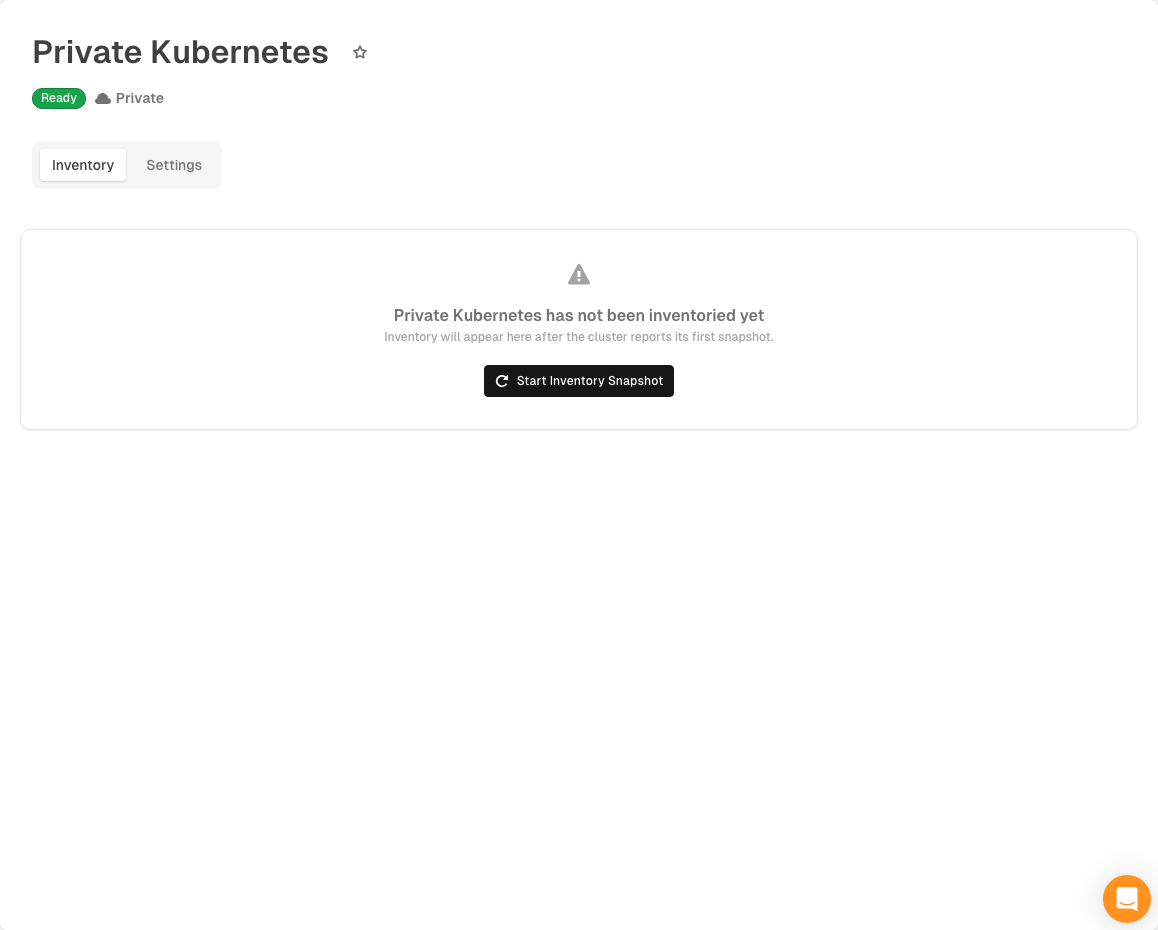
Hyphen starts a snapshot workflow and shows progress while the cluster refreshes inventory. When the workflow completes, the inventory graph appears.
View Inventory
The inventory graph groups resources by namespace and connects related resources, such as workloads, pods, services, ingresses, and config maps.
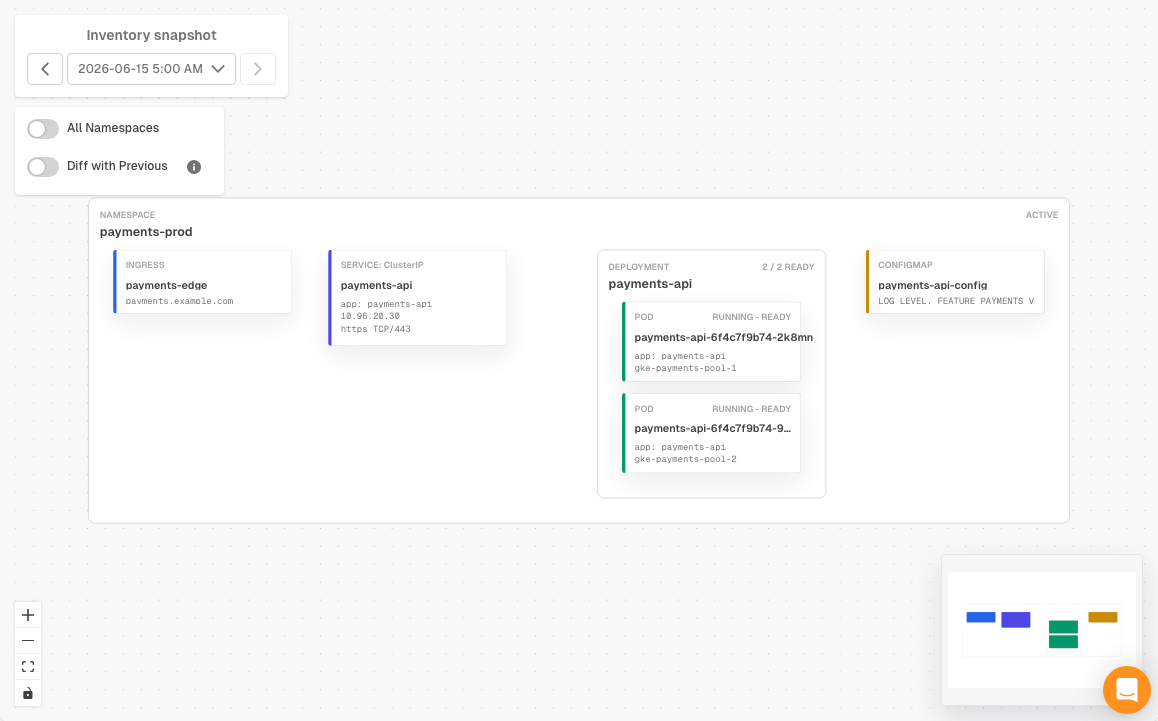
Use the graph controls to:
- Choose the selected inventory snapshot.
- Move to the previous or next loaded snapshot.
- Load more historical snapshots when available.
- Click Refresh Inventory to create a new snapshot.
- Toggle All Namespaces to include namespaces hidden by the default view.
- Click a resource node to inspect its details.
Compare Snapshots
Turn on Diff with Previous to compare the selected inventory snapshot with the immediately older snapshot. Added resources and removed resources are highlighted in the graph.
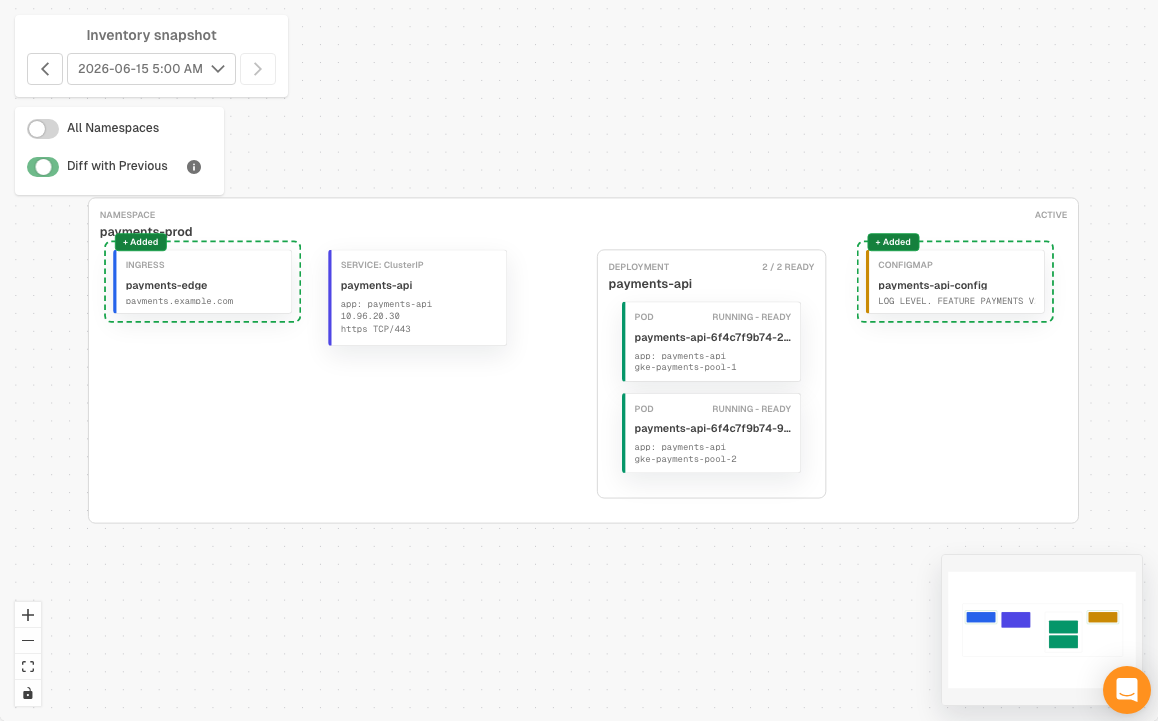
If there is no earlier snapshot, or if the previous snapshot is still loading, Hyphen explains why the diff is not available.
Things to Know
- Inventory snapshots are read-only.
- Refreshing inventory starts a new workflow for the selected cluster.
- The latest snapshot is selected by default unless you open a link to a specific snapshot.
- Historical snapshot navigation depends on the snapshots already loaded in the selector.