
QR codes provide a convenient way to share links in a scannable format, making it easy for users to access information instantly on their mobile devices. They are especially useful in scenarios where typing a URL is impractical, such as on physical media (posters, business cards) or digital displays.
Table of Contents
Why Use QR Codes?
- Quick Access: Users can scan a QR code to instantly access a website without typing a URL.
- Versatile Use: QR codes are scannable by any smartphone camera, making them accessible to a wide audience.
- Customizable: You can customize QR codes with colors, logos, and sizes to align with your brand.
- Trackable: If linked to a short URL with analytics, you can monitor engagement metrics like total and unique clicks.
Prerequisite: Create a Short Link
Before you can create a QR code, you must first generate a short URL. If you haven't done this yet, see the guide to Create a Short Link. Once your short link is ready, you can proceed with the steps below.
Step-by-Step Instructions
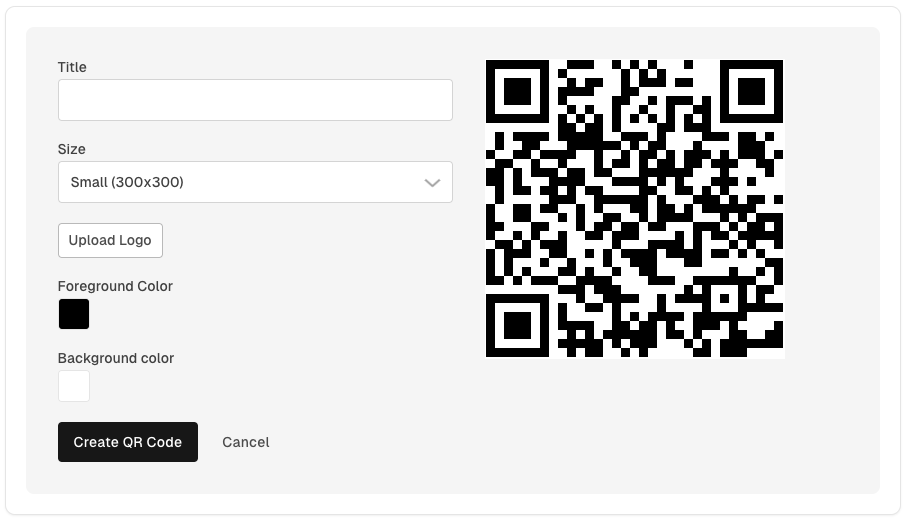
-
Enter a Title (Optional)
- In the "Title" field, add a descriptive title for the QR code. This is optional but helps in organizing QR codes if you create multiple. If one is not provided, the current date/time will be used.
-
Select the Size
- Use the "Size" dropdown menu to choose the dimensions of the QR code. Options might include Small, Medium, or Large, depending on your intended use.
- Consider the intended use: a small QR code is ideal for digital screens, while larger sizes may be better for print.
-
Upload a Logo (Optional)
- Click on "Upload Logo" to add a custom logo to the center of the QR code.
- 1 Mb max size
- A logo can make your QR code recognizable and aligned with your branding.
-
Choose Foreground and Background Colors
- Click on the color box next to "Foreground Color" to change the color of the QR code itself.
- Click on the color box next to "Background Color" to change the background color.
- Note: Ensure high contrast between foreground and background colors to maintain QR code readability.
-
Create the QR Code
- Once you've customized the settings, click the "Create QR Code" button.
- Your QR code will be generated and displayed on the right side of the panel.
-
Download or Save the QR Code
- After creating the QR code, you can download it to use in your marketing materials, websites, or print media.