
Expanded Agent Workspace and Resizable Panels
improvedAgent gives chats, tasks, and schedules more room, with full-page conversations and a resizable panel for reviewing work alongside your current page. This release also makes Kubernetes inventory history lighter to browse and helps you catch deployment setup problems before a run starts.
Expanded Agent Workspace and Resizable Panels
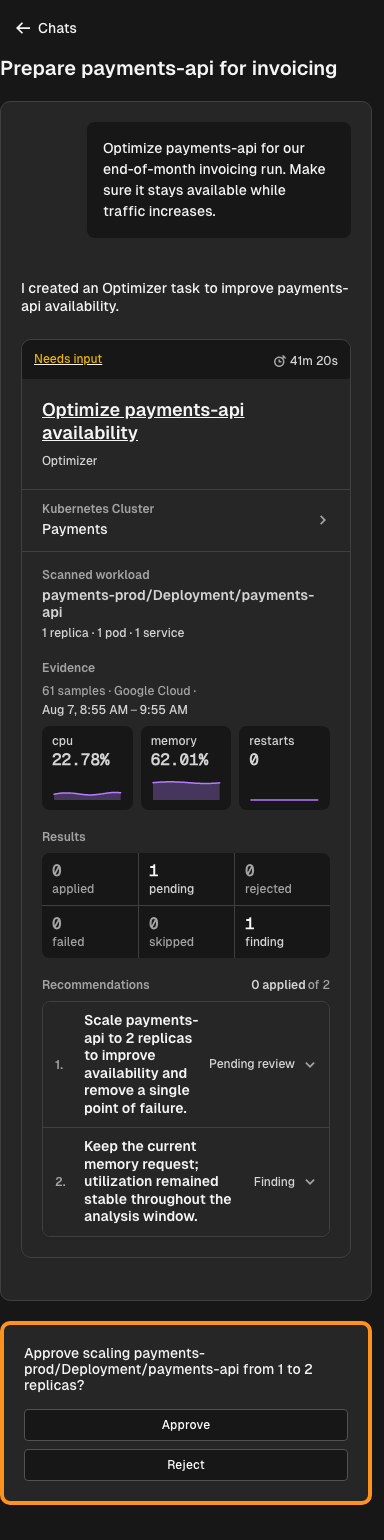
Open chats, tasks, and schedules from the Agent navigation. Full-page chats provide more room for longer conversations, and the resizable chat panel lets you widen a Kubernetes Optimizer run while keeping your current page in view.
Recorded context and runs from each chat help you return to the work behind an answer. You can also ask Agent to list or inspect your tasks, reducing the time spent searching for the right run. Responses appear progressively as Agent writes, so you can start reading sooner. See Agent Chat.
Support handoffs preserve the conversation. When you request human support in Agent Chat, the conversation records when Hyphen Support joins and leaves. Agent pauses while Support is connected, and the message box makes clear who receives your reply. Returning to the conversation preserves that history.
Review Workload Inventory Without the Wait
When reviewing a Kubernetes Optimizer recommendation, you can browse inventory history without downloading every snapshot's resource details. Snapshot lists load summaries first; Hyphen fetches full inventory for the snapshot you select and the one you compare it with. This reduces the data needed to move between snapshots and inspect a workload's history.
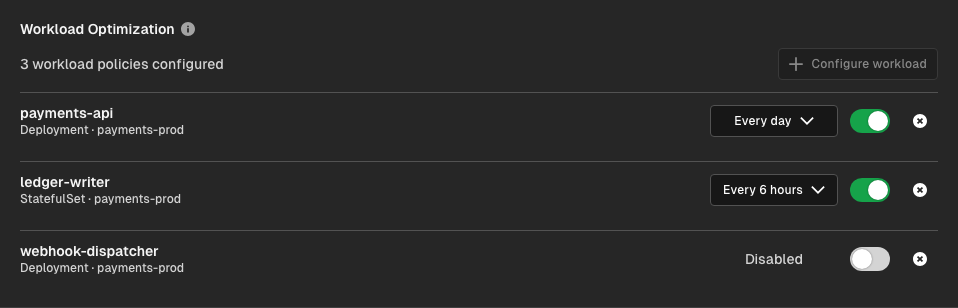
Your existing workload policies continue to control each Deployment or StatefulSet's analysis schedule.
Catch Deployment Problems Before a Run Starts
Prepare cloud connections where you deploy. Deployment settings let you set up project cloud integrations, and the readiness dialog helps you prepare missing connections before starting a deployment. Missing-build instructions provide commands for the selected environment, reducing trips between setup screens and the terminal. See Deployment run methods.
Check build coverage across cloud targets. Readiness checks show whether the selected build has an image for each required cloud registry. Preview deployments use the exact build checked by the readiness dialog, reducing surprises between validation and deployment.
Deployment tasks also pass environment values through encrypted secrets, reducing exposure of plaintext values in deployment pipeline data.
Follow the Build and Deployment Trail
The Hyphen CLI now records multiple container image references in a single build, preserving the destinations needed for deployment across cloud targets.
Deployment history identifies Agent as the initiator of Optimizer deployments, so you can distinguish automated work from member-started runs.
Connection activity brings runs and logs together. Open a connection to review its activity, select a run, and inspect its action, status, and logs. This helps you trace a failed setup step to the connection that needs attention.
Things to Know
- Use the locally linked project. Commands copied from the dashboard use
your local
.hxproject context. Confirm it matches the project you intend to deploy. - Build readiness covers every required registry. An image available for one cloud target does not establish coverage for the others.
- Workload policies and observability setup are existing capabilities. The previous entry covers scheduling, telemetry connections, and approval behavior.